You can upload the requested documents directly from the Merchant Dashboard.
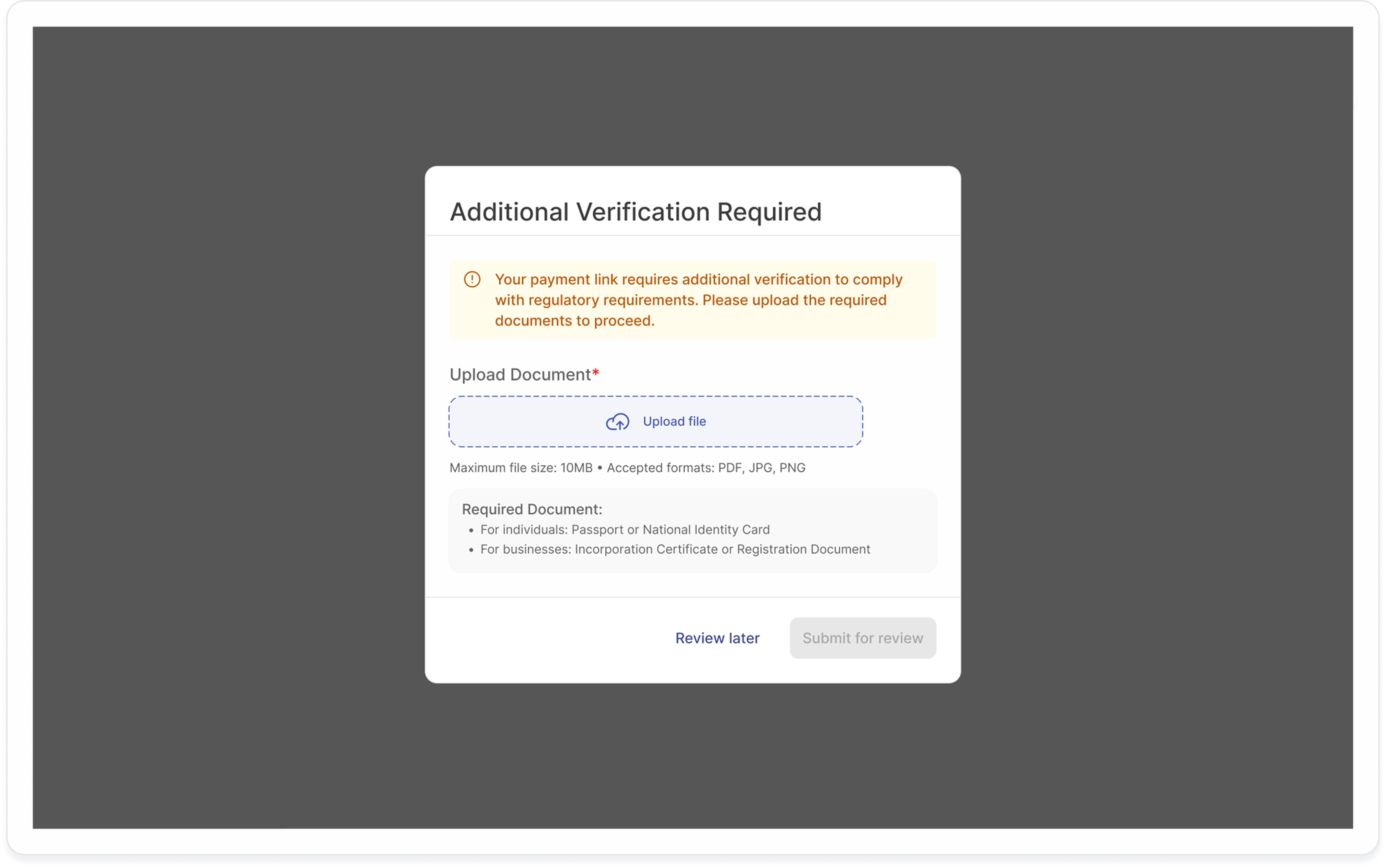
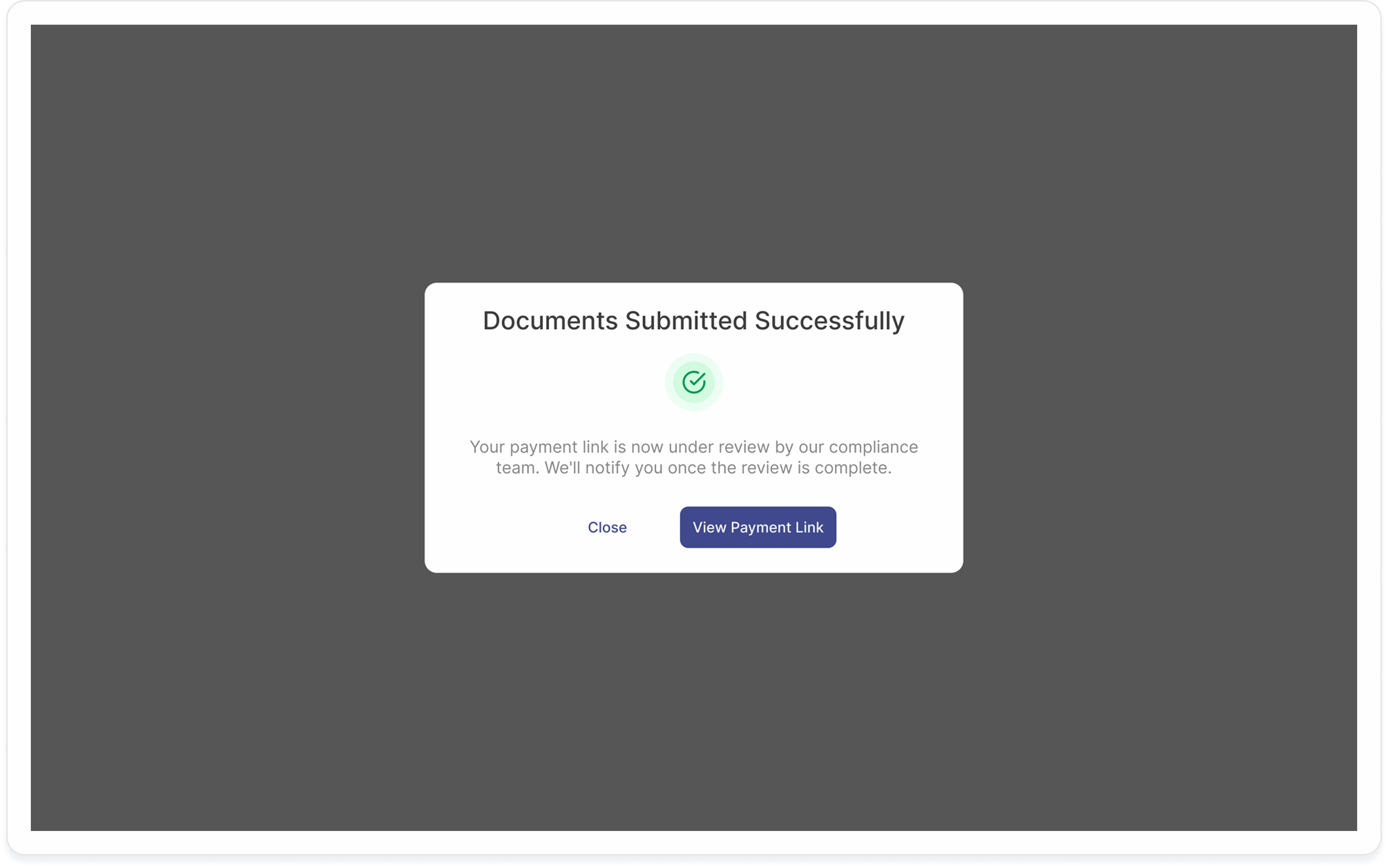

If you want to submit RFI documents through your backend, you can upload them using Glomopay's Update RFI Document API.
During Create Payment Link, Glomopay runs risk checks as mentioned earlier.
If additional verification is required, the Create API returns:
- status:
action_required
What you get in the Create response
Along with the payment_link_id, you'll receive:
rfi_documents- a list of required documents, each containing:rfi_document_idrequired_document_type(e.g., passport)
Important: Each rfi_document_id represents one specific required document. You must upload documents against the same IDs.
What happens after you upload
Once all required documents are uploaded successfully:
- Status changes to
under_review - Glomopay reviews the submission
- Status updates are sent via callback/webhook
- If approved, status becomes active
- The Create Payment Link API returns
action_requiredand provides:- The payment link ID
- One or more RFI document IDs, each with an associated required document type
- Upload the required documents using the Create a Document API.
- Call the Update RFI Documents for a Payment Link API by supplying:
- The payment link ID returned from step 1
- The RFI document IDs returned from step 1
- The id returned from step 2
- After successfully uploading the documents, the Glomopay compliance team will review the documents and any status update will be communicated via a callback.