Glomo's Multi login capability allows you to manage multiple accounts under a single set of credentials. Your team can switch between business units without having to log in to each one separately.
Glomo consolidates user access into a single global identity. When a user is added to multiple Merchant IDs (MIDs), they maintain one set of credentials to access the entire ecosystem. This removes the need for duplicate accounts and ensures that security policies, such as password resets and multi-factor authentication, are applied across all business lines.
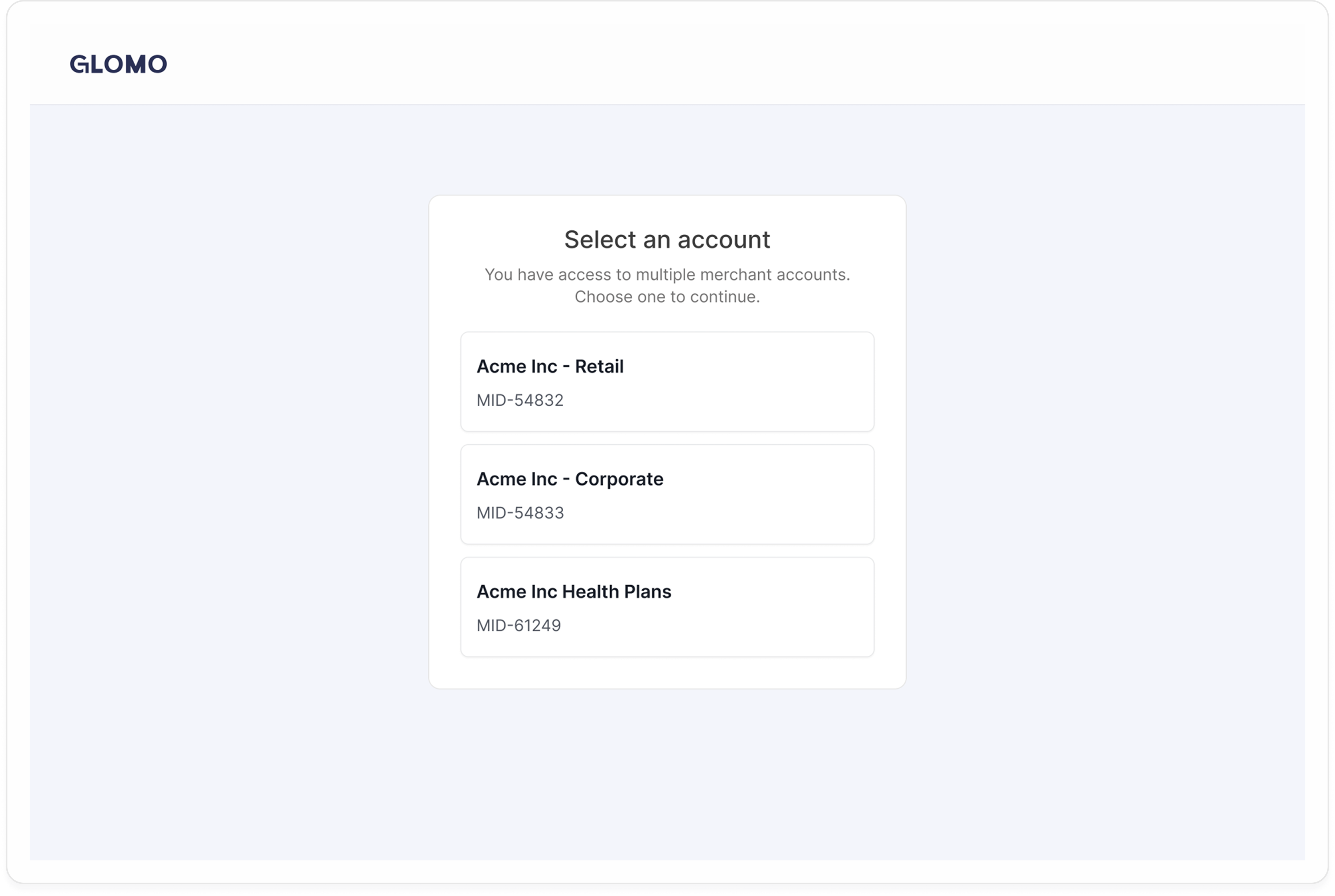
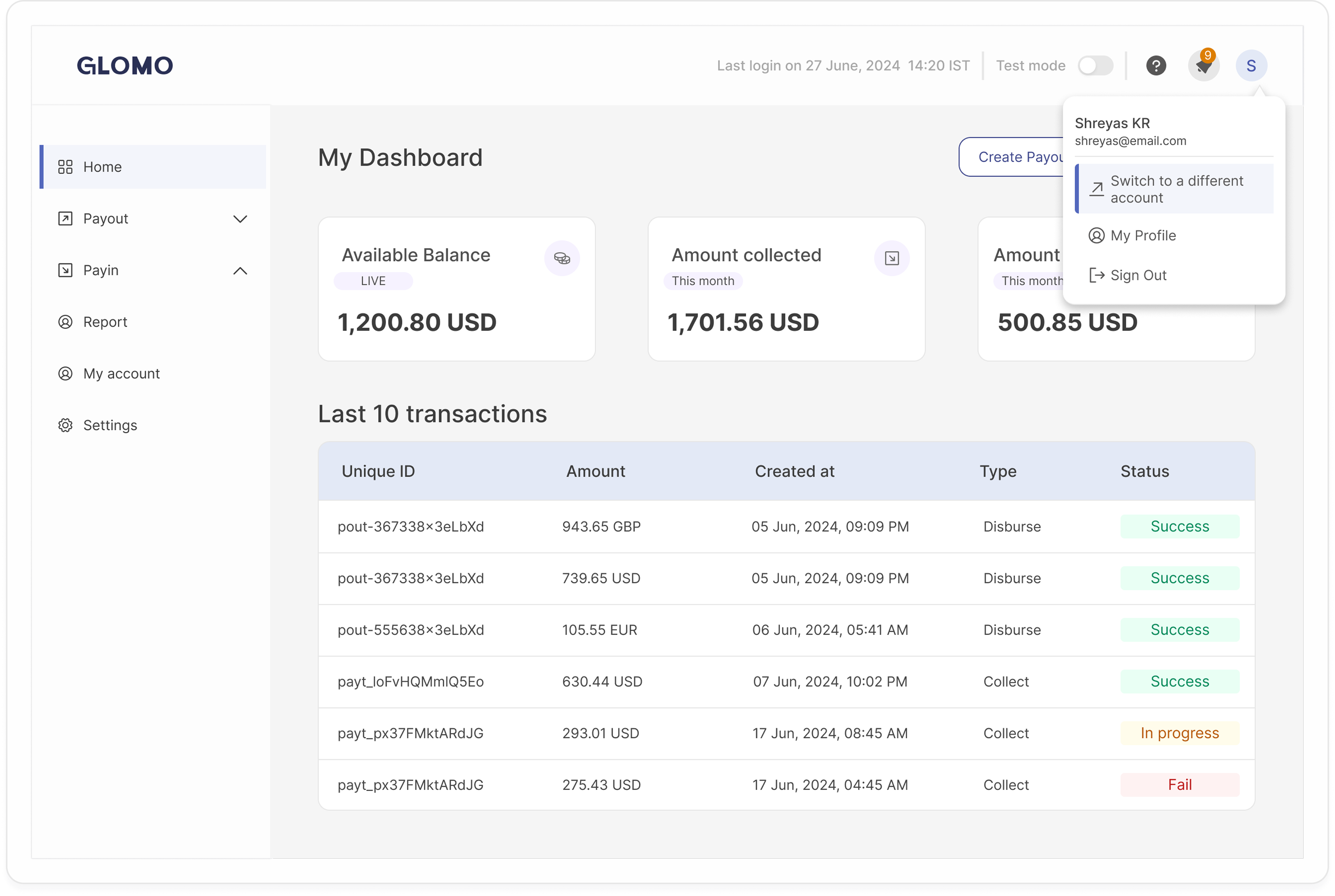
Glomo enables users to switch between different MIDs instantly without logging out. Users can transition from one merchant dashboard to another. This allows centralized finance and operations teams to manage reconciliation, refunds, and reporting across different MIDs.
Every user on the platform is assigned one of three roles — Admin, Member, or Sales Partner — which determines the scope of records they can view and act on, and which platform capabilities they can access.
Admins have unrestricted access to the platform. You can view and manage all records across the business — regardless of who created them — and have full control over team management, including inviting new users, disabling existing ones, and updating roles.
Beyond day-to-day operations, Admins have access to reports and webhooks for monitoring and integrations, and on platforms with child merchants, you can manage those sub-accounts directly. You are also the designated owners of compliance workflows, with visibility into screening hits, sanctions checks, and transaction monitoring (TxM) decisions.
Members are set up for day-to-day platform operations. You have the same operational access as an Admin — managing payins, subscriptions, payments, customers, refunds, reports, and webhooks — but with a narrower scope of authority.
Members cannot manage other users, assign or change roles, or access any compliance-related workflows. This makes the Member role well-suited for operational teams who need broad transactional access without administrative or regulatory responsibilities.
The Sales Partner role is designed for external or channel partners who operate independently within the platform. Your access is intentionally scoped: you can only view and act on records you personally created, ensuring a clean separation between partner activity and the broader business.
Within that scope, Sales Partners can manage the complete lifecycle of payins, subscriptions, customers, and refunds. One exception applies: you cannot update the next payment date on subscriptions. You do not have access to reports, webhooks, user management, or any compliance or platform-level features.
| Capability | Admin | Member | Sales Partner |
|---|---|---|---|
| Record scope | All records | All records | Only records you created |
| Payins, subscriptions, customers, refunds | Full access | Full access | Full access (except updating next payment date) |
| Reports and webhooks | Yes | Yes | No |
| User management (invite, disable, assign roles) | Yes | No | No |
| Child merchant / sub-account management | Yes | No | No |
| Compliance workflows (screening, sanctions, TxM) | Yes | No | No |
Only Admins can invite new users to the platform. To send an invitation:
- From the left sidebar, go to Settings.
- Open User Account Management. This takes you to the Users page, which lists everyone on your account along with their email, role, creation date, and last login.
- Click Invite Member in the top-right corner of the Users page.
- In the Invite users dialog, fill in the new member's details:
- First Name and Last Name
- Email Address — the invitation is sent to this address
- Role — select Admin, Member, or Sales Partner (see Roles and Permissions above for what each role can access)
- Click Confirm to send the invitation.
The new member receives an invitation at the email address provided and appears on the Users page once they complete their account setup.